Approvals Widget

Every kind of request, in one place

The List Approvals widget brings requests from every SharePoint list your organization already uses into one screen. Time off, travel, expense claims, a new laptop, access to a system.

My requests shows what someone asked for, whatever kind of request it is, each with its status in plain words. To approve shows what is waiting on their decision. Starting a new request is a single click, with every connected list offered by name.

Some of the key functionalities this widget has to offer

Highlighted features

Every decision, kept where you can find it

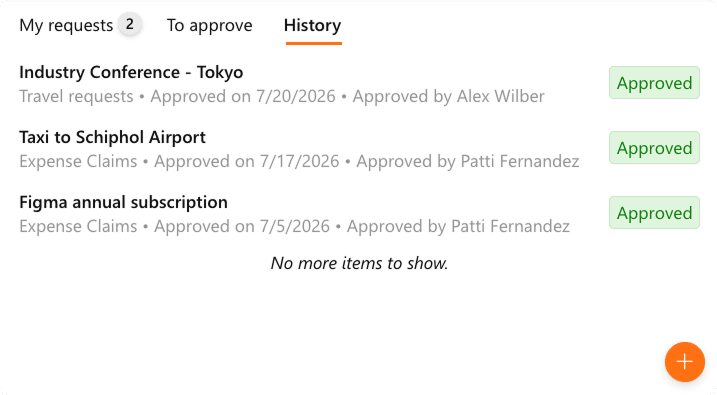
Recently approved brings the outcome to you. A request that has just been decided appears right underneath your open ones in My requests, so you see the result where you were already looking.

History keeps the record after that: what was decided, on what date, and by whom. Useful the next time someone asks when exactly that trip was approved.

A draft until you are ready to send it

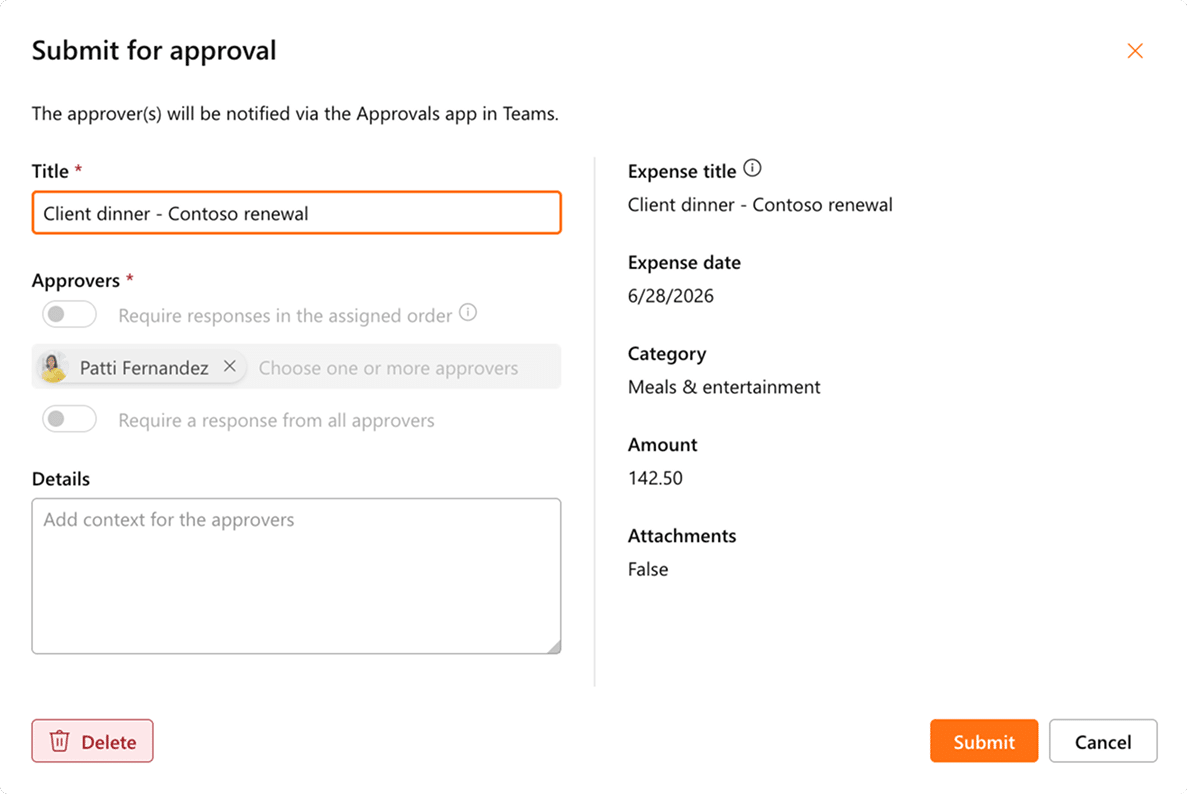
A new request starts as a draft and stays in My requests as Not submitted until you decide it is ready. Fill in the form now, send it once you have the receipt or the final price.

In the Submit for approval dialog the request gets its title, its approvers and any context they need, with toggles for responding in the assigned order and for requiring a response from everyone. Approvers are notified through the Approvals app in Microsoft Teams, so it reaches them where they already work.

Everything you need to decide, in one dialog

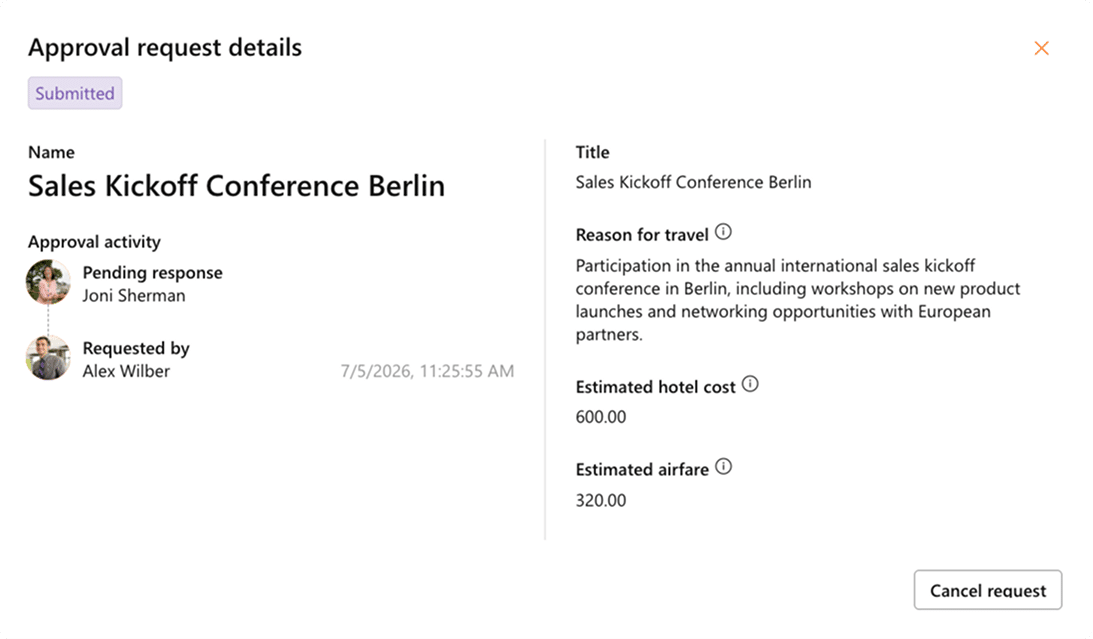
Open a request from To approve and the dialog shows the status, the approval activity with names and faces, and the fields that matter for this kind of request, each with its own explanation on hover. Approve or Reject with a comment, and it is done.

Open a request you submitted yourself and the same dialog fits that role. The status reads Submitted, there is no comment box, and the only action is Cancel request.

Add your lists and put them in order

Setting up the widget is short. Open Configure Approvals, add the lists you want to offer, give each one a description so people know at a glance what it is for, and drag them into the order you want them shown.

One screen per list, and your SharePoint stays put

Each list then gets a screen of its own: the site, the list, the title column, the URL of its request form, an audience so it only appears for the right people, and a notes field for whoever configures it next.

The same screen is where you pick the columns an approver sees, and where you decide whether the requester chooses their own approvers or your organization does. Your lists stay where they are, your flows keep running, and your permissions keep applying.

Your own form, your own list

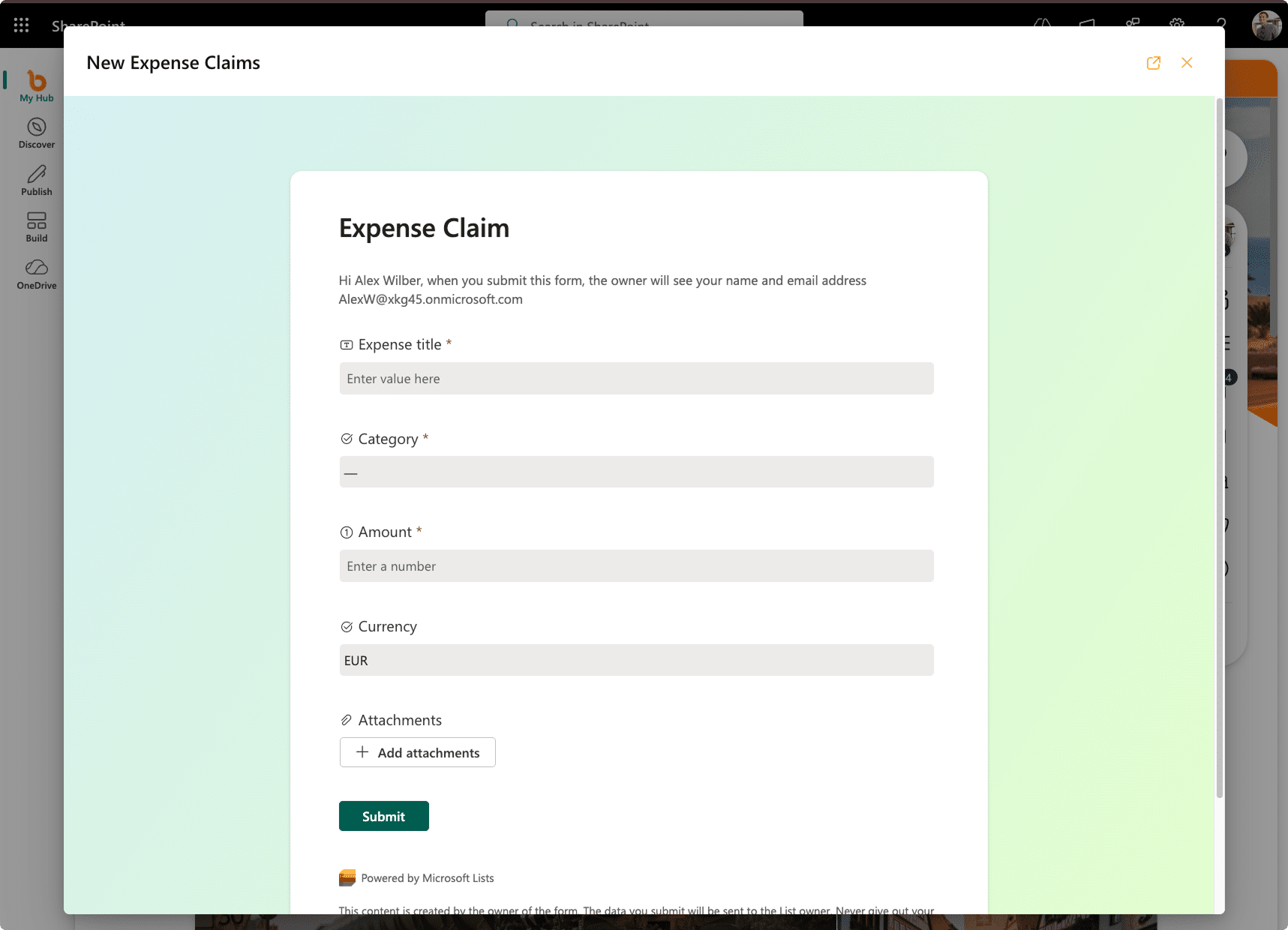
The form people fill in is yours. Build it with Microsoft Lists or with Microsoft Forms, whichever your team already works in, and give it the fields your process actually needs: a category, an amount, a currency, an attachment for the receipt.

It opens in a dialog on the board, so nobody leaves the page to submit something. What comes in is stored in the SharePoint list behind that form, under your own permissions and retention, and it stays there.

The List Approvals widget turns a handful of scattered SharePoint lists into one place where people ask, follow and decide. Requesters find the right form in one click and can see where things stand. Approvers get everything waiting on them in one tab, with enough on screen to say yes. Nothing moves out of SharePoint.