



The photos your organization keeps in SharePoint deserve a place where people actually see them: on the board, sorted into albums, and up to date without anyone editing a page. That is what the new Photo Gallery widget for Bloom Hub does.
Each album is a tab with its own icon, such as Destinations, Team events and Our offices. The photos fill the widget in a mosaic that keeps every photo close to its own shape, with the title and the place it was taken right on the photo. A photo added to the folder in SharePoint appears in the album on its own.
Every photo opens full size
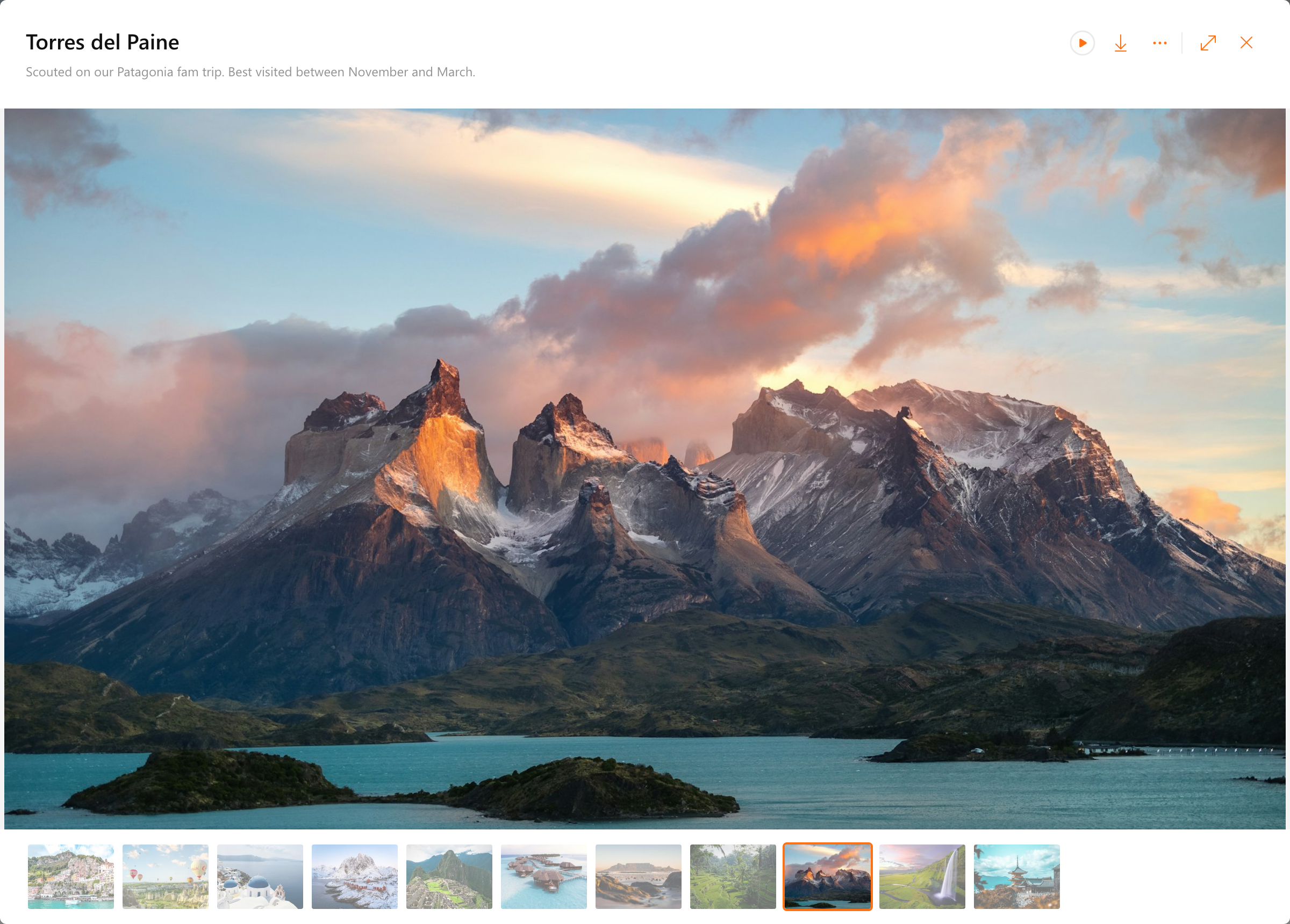
Click a photo and it fills the view. The title and description sit at the top, and a strip of thumbnails runs underneath so you can jump straight to any photo in the album. Play slideshow moves on by itself, with a ring around the button that fills up until the next photo appears. Zoom in with your mouse wheel, a pinch or a double click, and drag to look around in the photo. Download, Copy image and Open in SharePoint are one click away, and a right-click on any photo in the gallery offers them too.
Pages, a list or a photo of the day
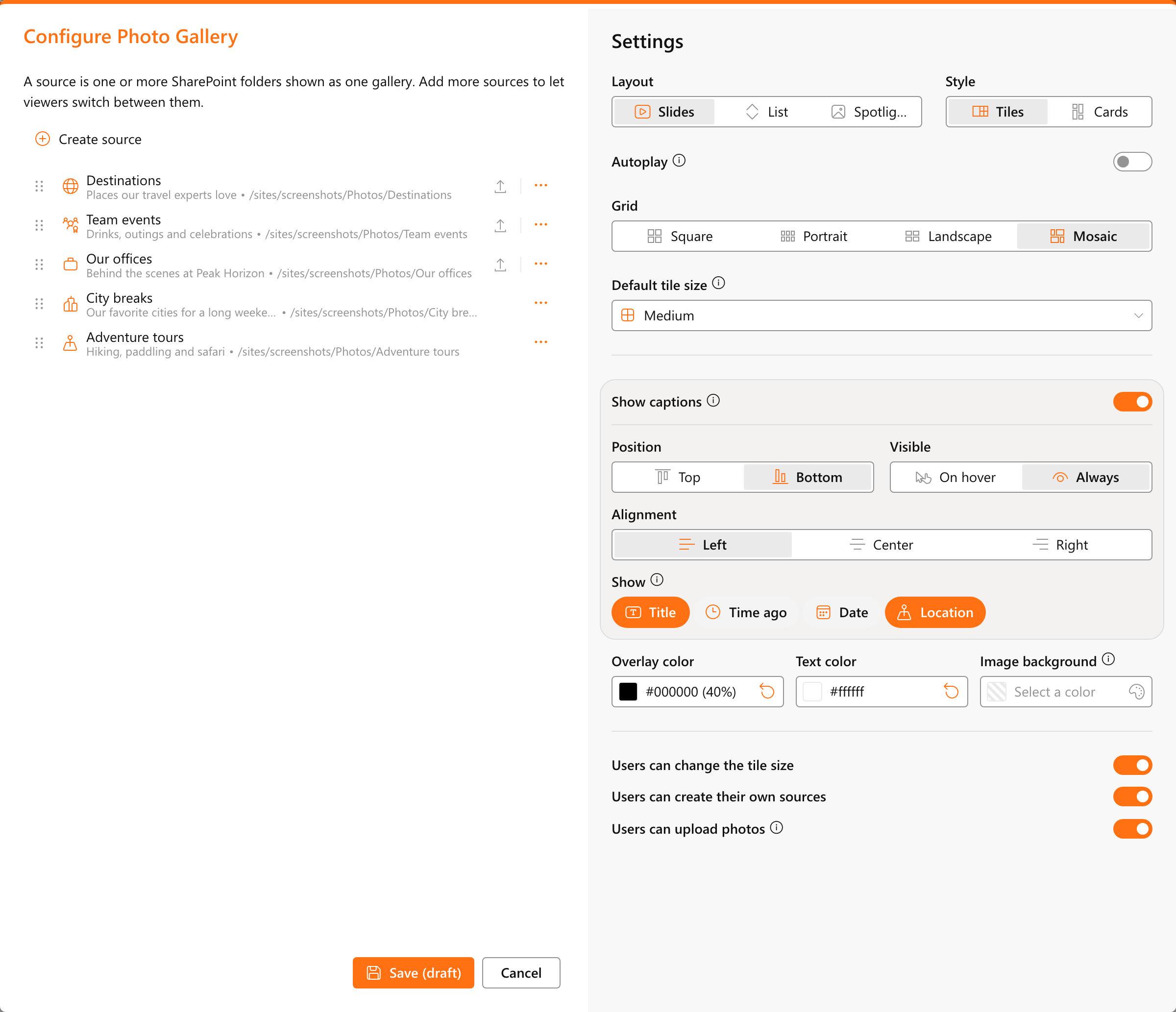
Every board gets the look that suits it. Slides shows the photos on pages to flip through, like the mosaic above. In the Cards style each photo gets rounded corners and room around it, here with how long ago each team event took place.
List shows all photos of an album in one row to scroll through. In a wide widget, that row scrolls sideways.
Spotlight shows one photo a day across the whole widget. Everyone sees the same photo that day, and a new one appears after midnight.
Everyone puts together their own gallery
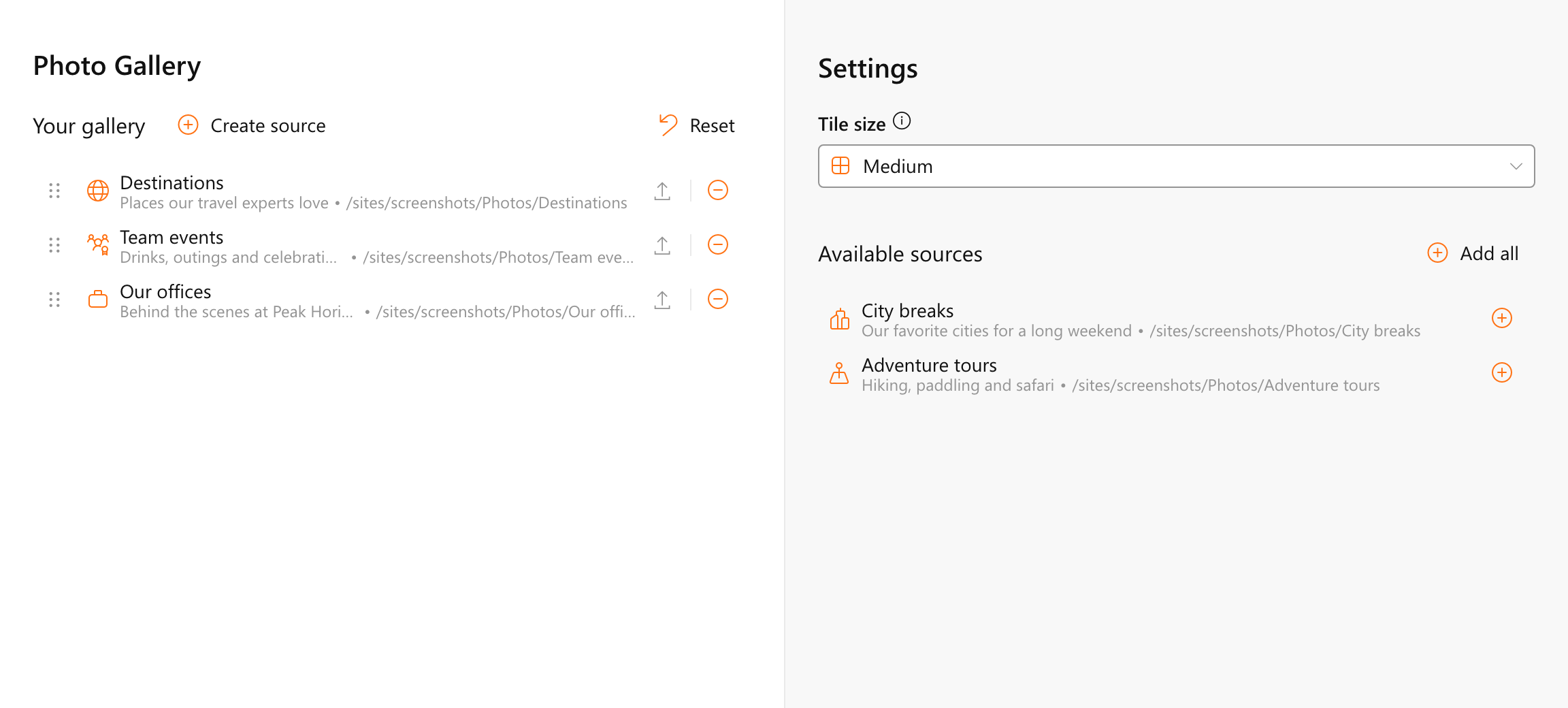
View in the widget header sets the tile size, from Small for many photos at once to Extra large for one photo as wide as the widget. My settings shows Your gallery next to Available sources. Add the albums you like, drag the tabs into your own order, and create an album of your own from a SharePoint folder. When uploads are turned on, Upload adds photos straight into the album you are looking at.
Administrators shape each album and decide who sees it
In Admin settings, a source combines one or more SharePoint folders, on this site or another, into one album. It gets a title and description in every content language, an icon and a sort order, including the date the photo was taken. Audience keeps an album for the people it is meant for, and Push places it in their gallery from day one.
Captions can show the title, how long ago, the date and the location, at the top or the bottom of each photo. The title and description come straight from the columns of the SharePoint library, so whoever adds a photo also writes its caption.
Coming soon to Bloom Hub
The Photo Gallery widget is coming to Bloom Hub soon. All it needs is a SharePoint library with a folder for each album, so you can start collecting your photos today.
Curious how it fits your organization? Book a demo.