
Search finds the document. Copilot gives you the answer from it.
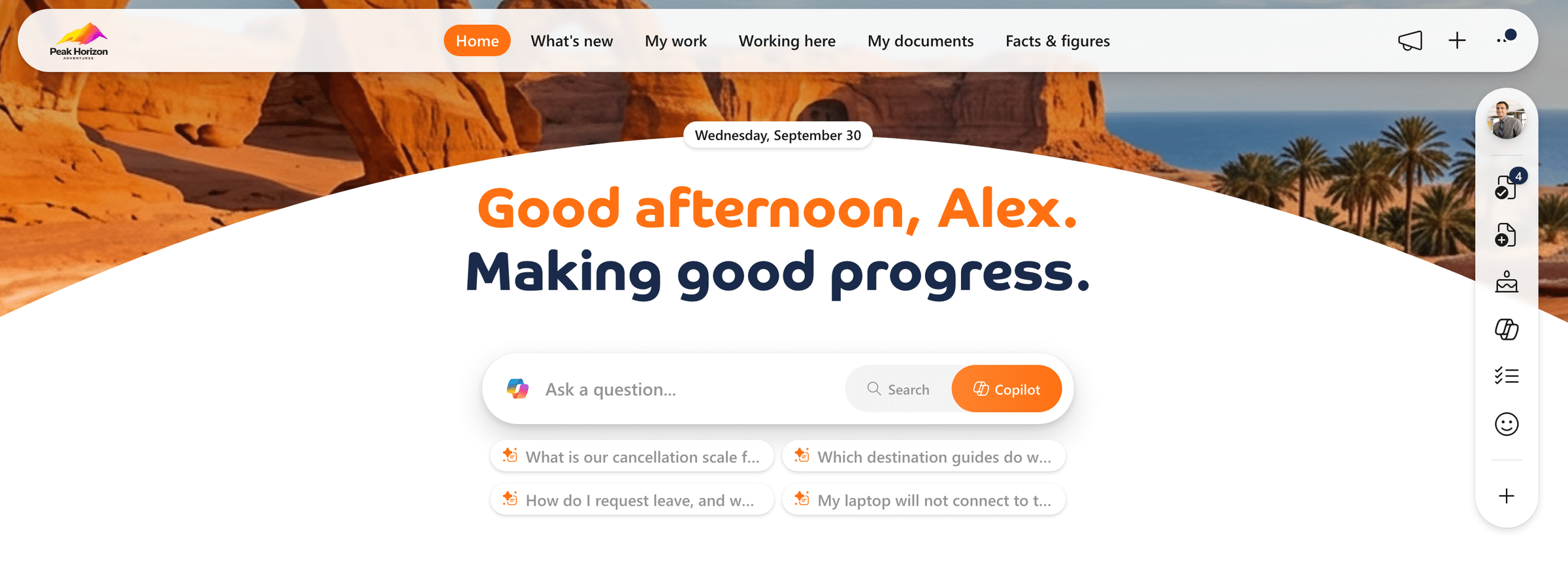
The search box on your start page now carries a Copilot button next to Search. Same box, same place where people already start their day, and one button to decide whether you want results or an answer. Ready-made questions from your organization sit right underneath, so the first one is a single click.
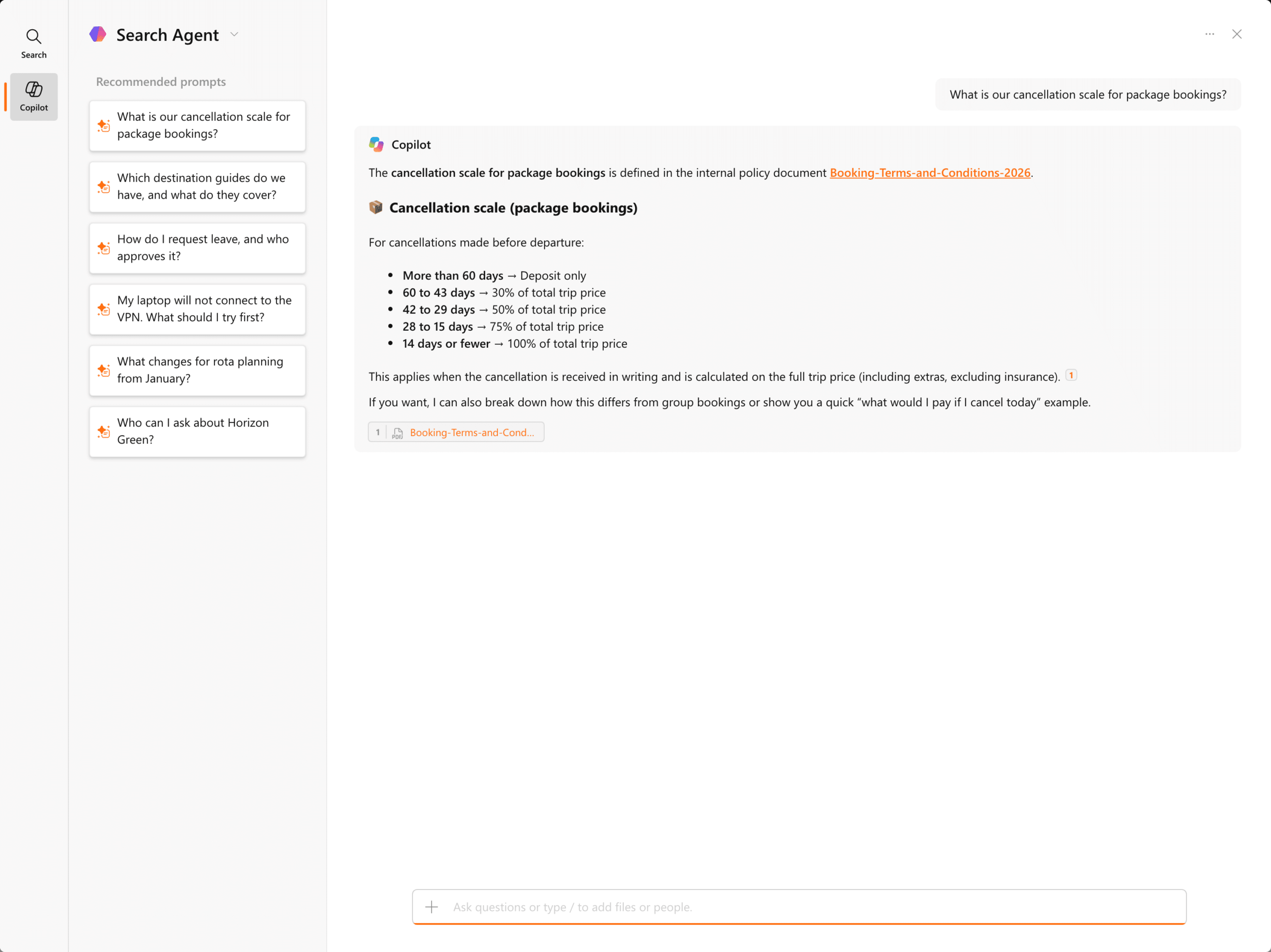
Ask what the cancellation scale is for package bookings and the answer comes back band by band, with the terms document it comes from linked underneath it. So the colleague who needs one line out of a forty page policy gets that line, and can still open the policy to check it.
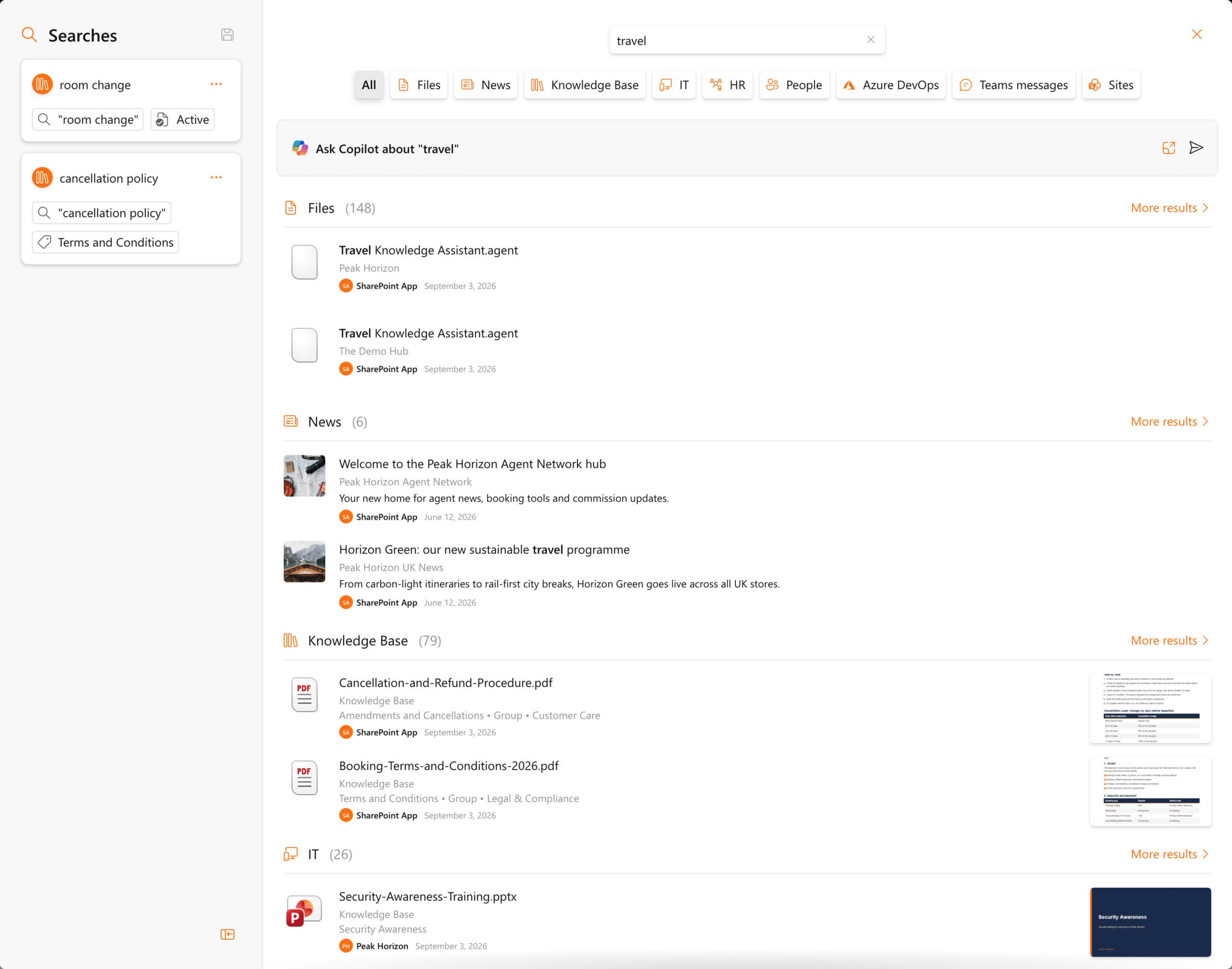
Each scope answers with its own assistant
A scope is a slice of your content: the knowledge base, HR, IT, the people directory. The row above the results names the assistant that is about to answer, so a travel question lands with a travel assistant and a leave question lands with an HR one. Switch tabs and the assistant switches with it, which keeps every answer inside the material that belongs to the question.
And every answer points back at its source. Numbered references sit in the text, the document is linked by name, and the chip underneath opens the file itself. Where the source is conditional the answer says so, so a leave entitlement arrives with the section it came from and the note that the collective agreement and the contract take precedence.
A prompt to start from, on the board and in the dialog
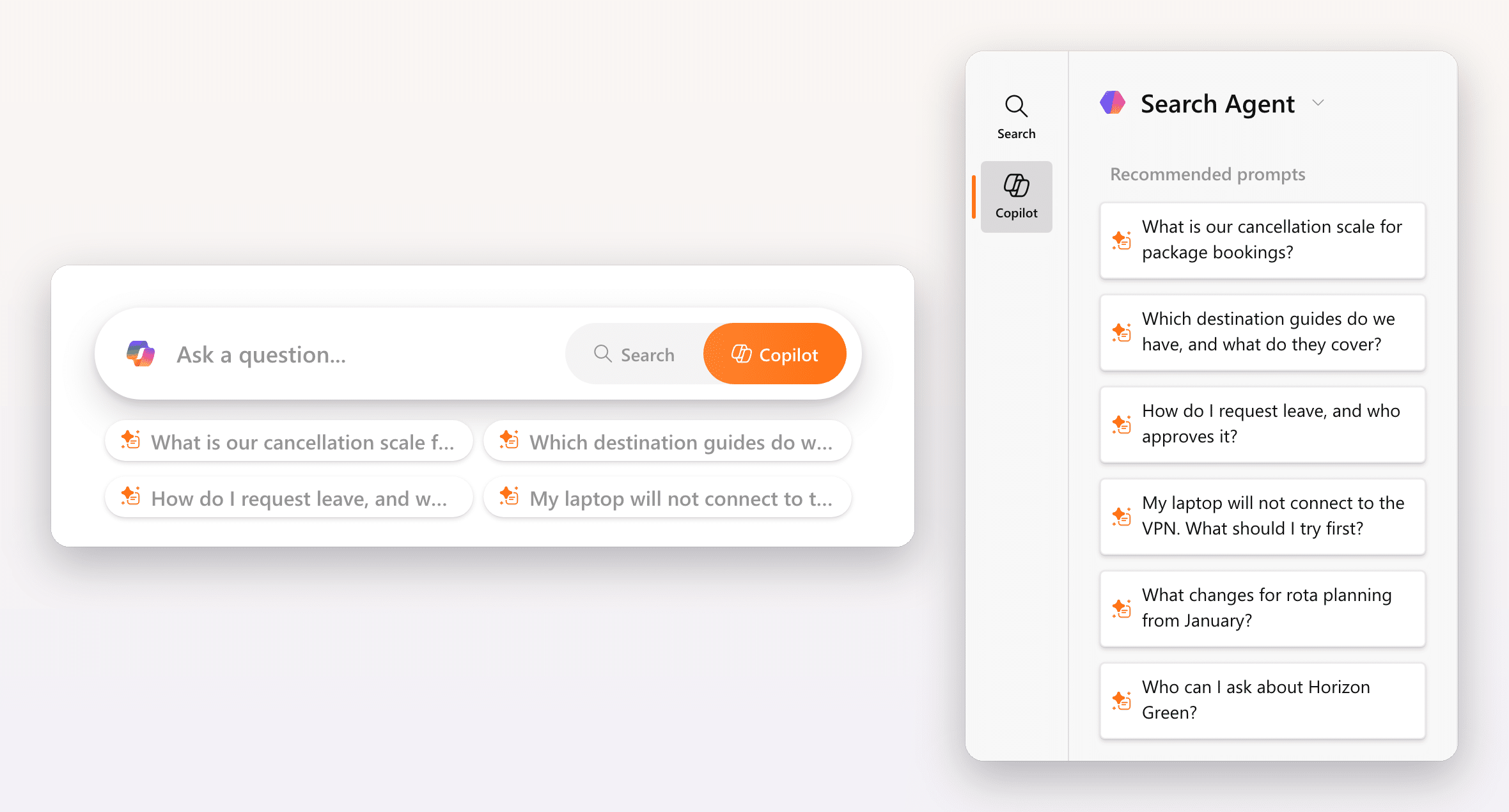
Every assistant arrives with prompts worth asking. On the board they sit as pills right under the search box, so the first question is a single click. In the search dialog they fill the left column under Recommended prompts, with your own questions collecting under Recent prompts below them.
Copilot works on a single result too. Right click a result and Ask Copilot offers prompts that suit it: summarize that file, build an FAQ from it, or catch up on a Teams conversation.
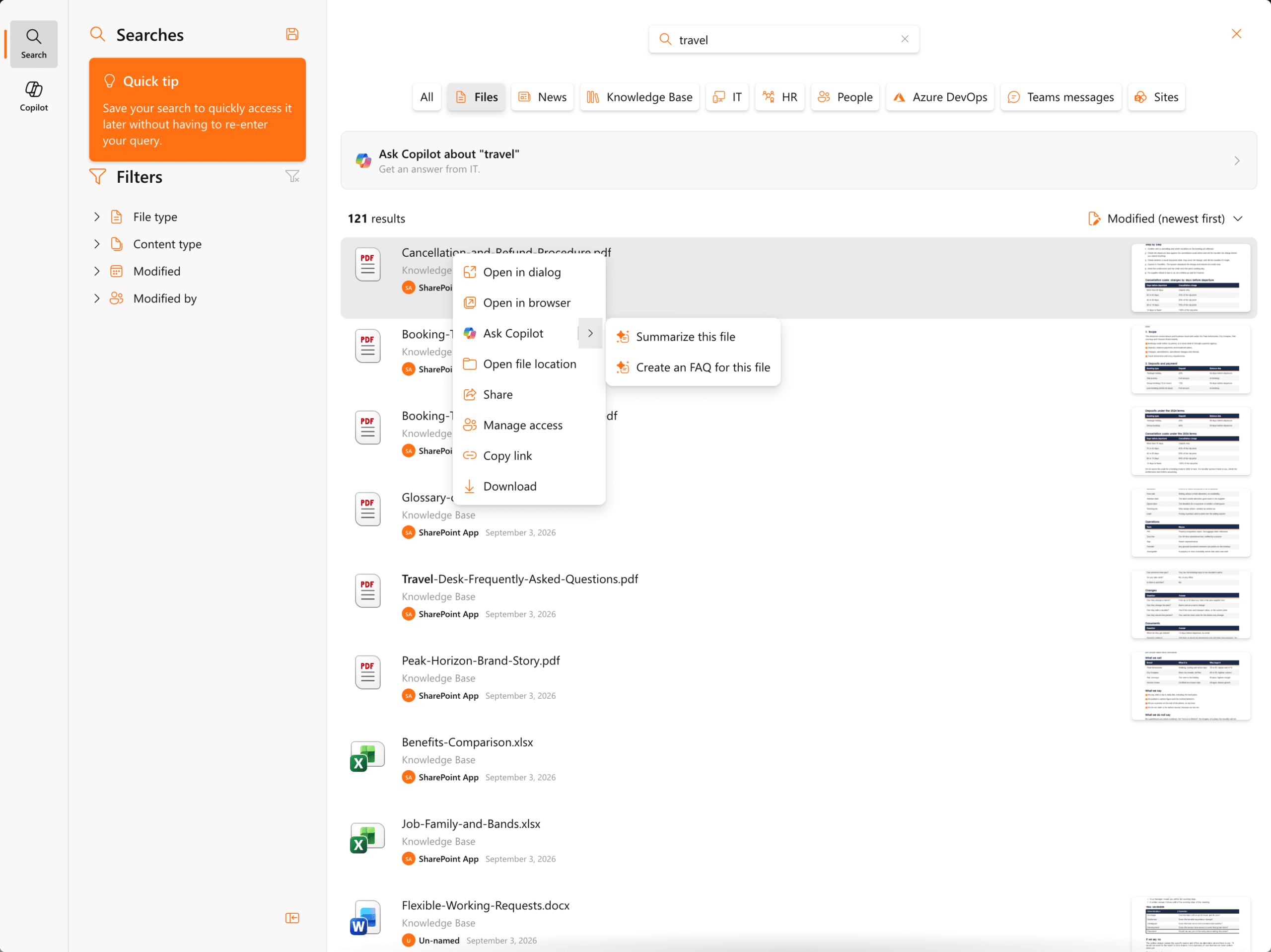
The answer opens in a panel beside the list, with the result it is about still highlighted, while the rest of your results stay exactly where they were. So you check one document after another and pick the right one in minutes.
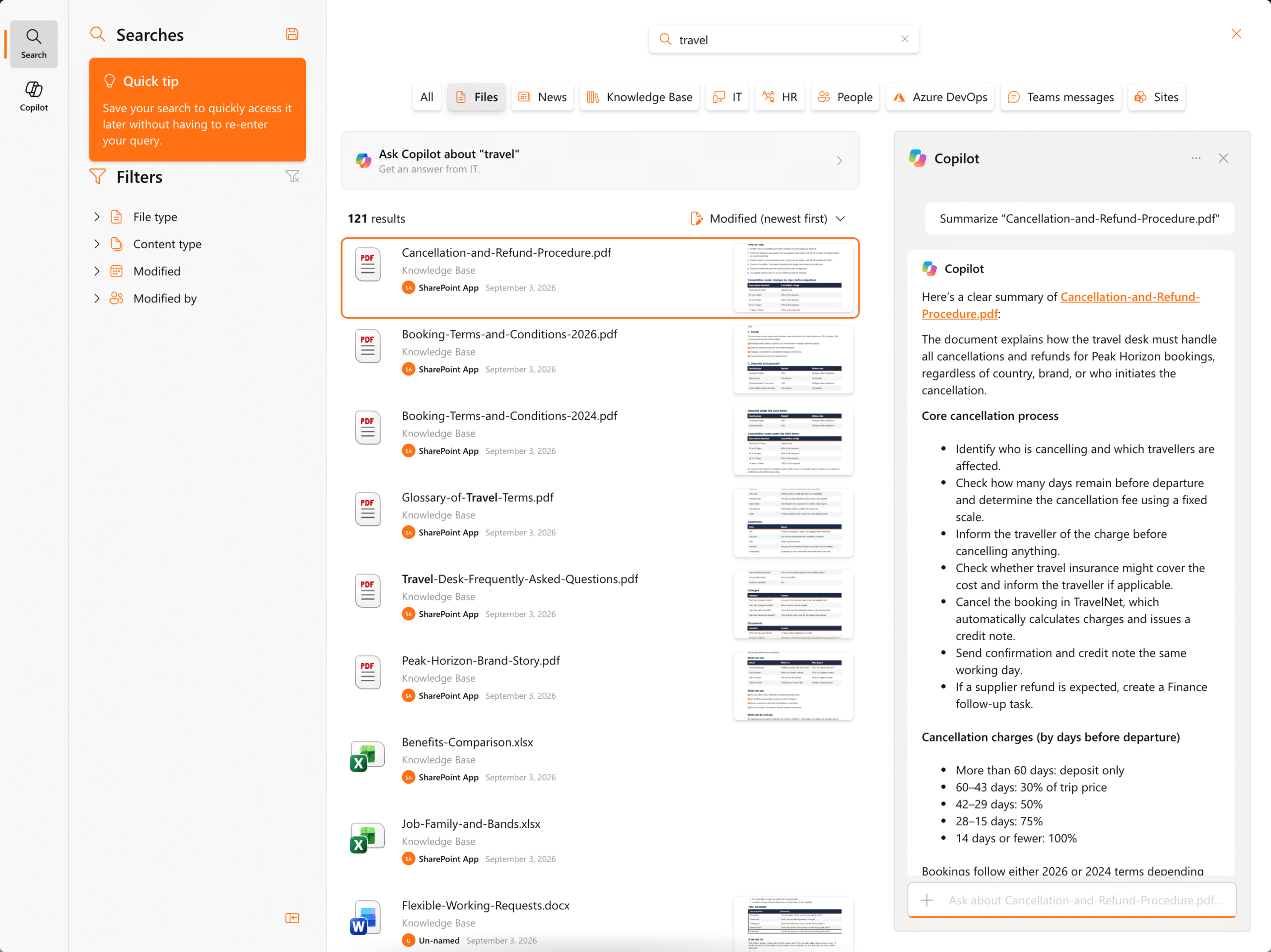
The same Copilot in Files, Tasks and Inbox
Copilot also sits where people already handle their work. Every file in the Files widget has Ask Copilot in its menu, with Summarize this file and Create an FAQ for this file ready to go. The chat opens with a preview of the file beside it, so the manager with five minutes before a review reads the key points next to the slides themselves.
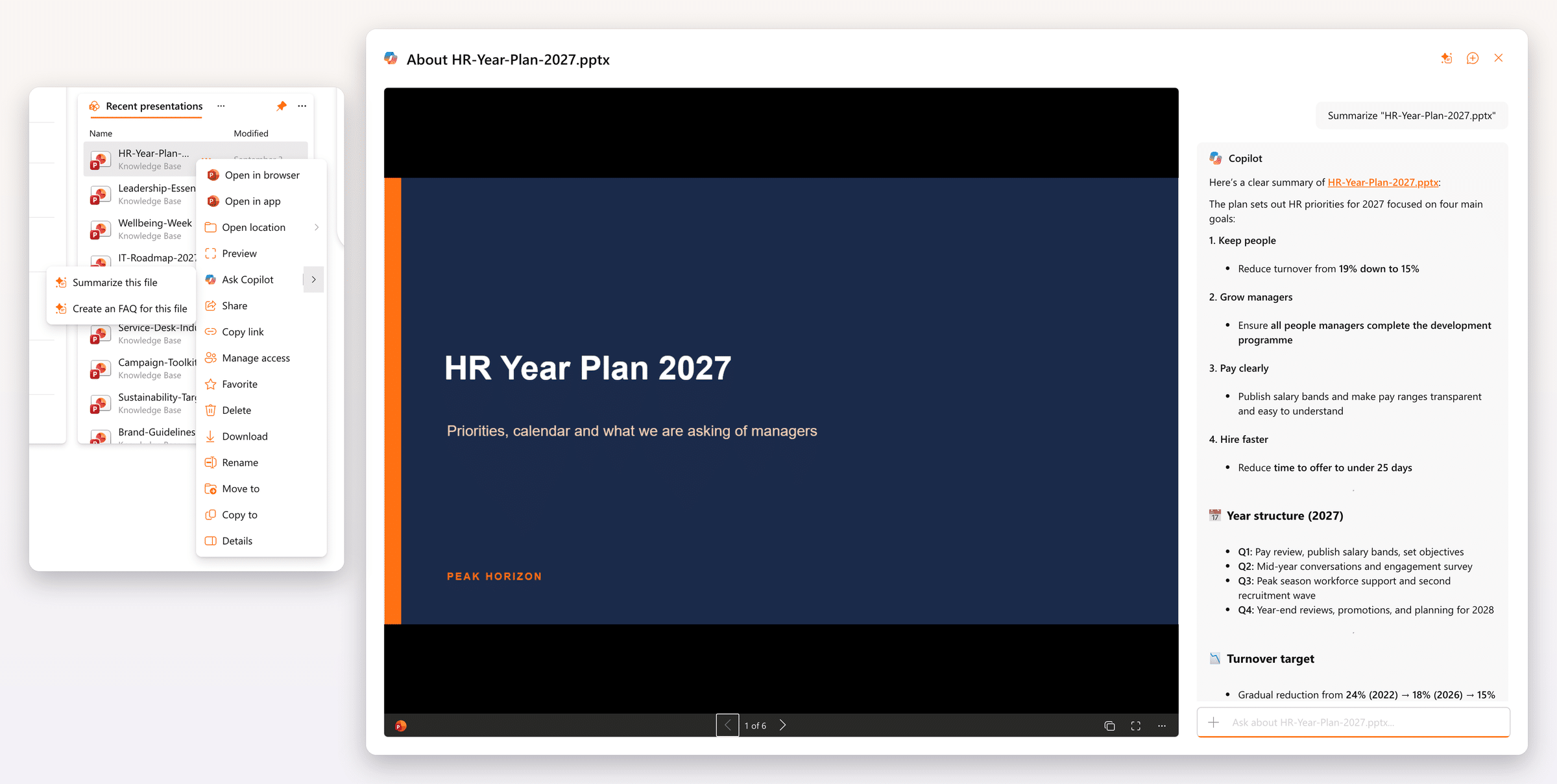
Tasks now has a menu on every task, with Ask Copilot in it. Help me get started turns a task into a few concrete steps you can start on today, and Copilot gathers the related meetings, mail and files as it goes. Find related info, Draft an update and What do I need? sit right beside it. In the Inbox widget the same entry summarizes a message and works out what a long thread asks of you.
Microsoft's agent out of the box, your own when you want one
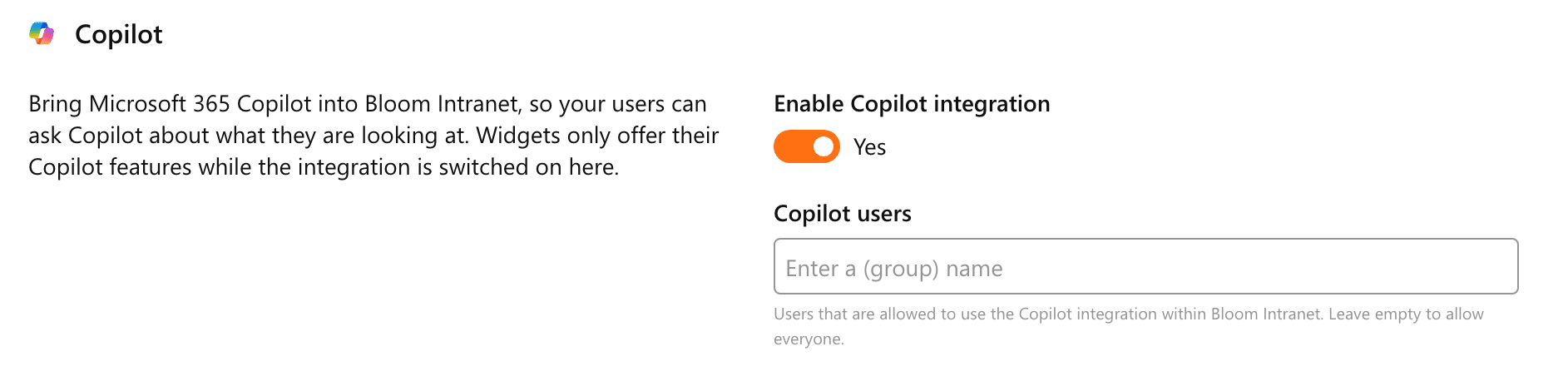
Copilot is switched on once for the whole hub, in the Admin center under General settings. Enable Copilot integration turns it on, and Copilot users decides who gets it: leave the field empty for everyone, or start with a pilot group and widen it when you are ready. Every widget follows that list on its own.
Enable Copilot sits in the search widget settings, next to the layout choice. Out of the box the answers come from Microsoft’s default agent, so the feature is useful the moment you switch it on. Use custom agent is where it becomes yours: give the agent a title, describe in your own words what it should do and what it should answer from, and add the prompts you want people to start with. Point it at an agent file instead and it brings that file’s own prompts along with it.
Scopes follow that agent unless you say otherwise. Override default agent, in the Copilot section of a scope, hands one scope an assistant of its own. The rest of the scope stays exactly as you built it: the query template, the filters, the sorting and the audience are untouched.
Ready when you are
Copilot is live in the Search widget, on the board and in the full search dialog, and in the Files, Tasks and Inbox widgets. Switch it on under General settings in the Admin center, then find Enable Copilot in the search widget settings, right under the layout choice, and Override default agent in each scope you want to answer differently. It sits alongside the Copilot that already answers questions about your Power BI reports.
Curious what it makes of your own content? Book a demo.


