
The success of an intranet comes down to adoption. People use what they understand, and they learn it best right where they work.
That is why Bloom Hub now has a guide of its own. The Bloom Guide brings help for every widget, short interactive guides and every update to Bloom Hub together in one place. It opens right inside Bloom Hub, in the language your hub speaks, so help is always one click away from the board you are working on.
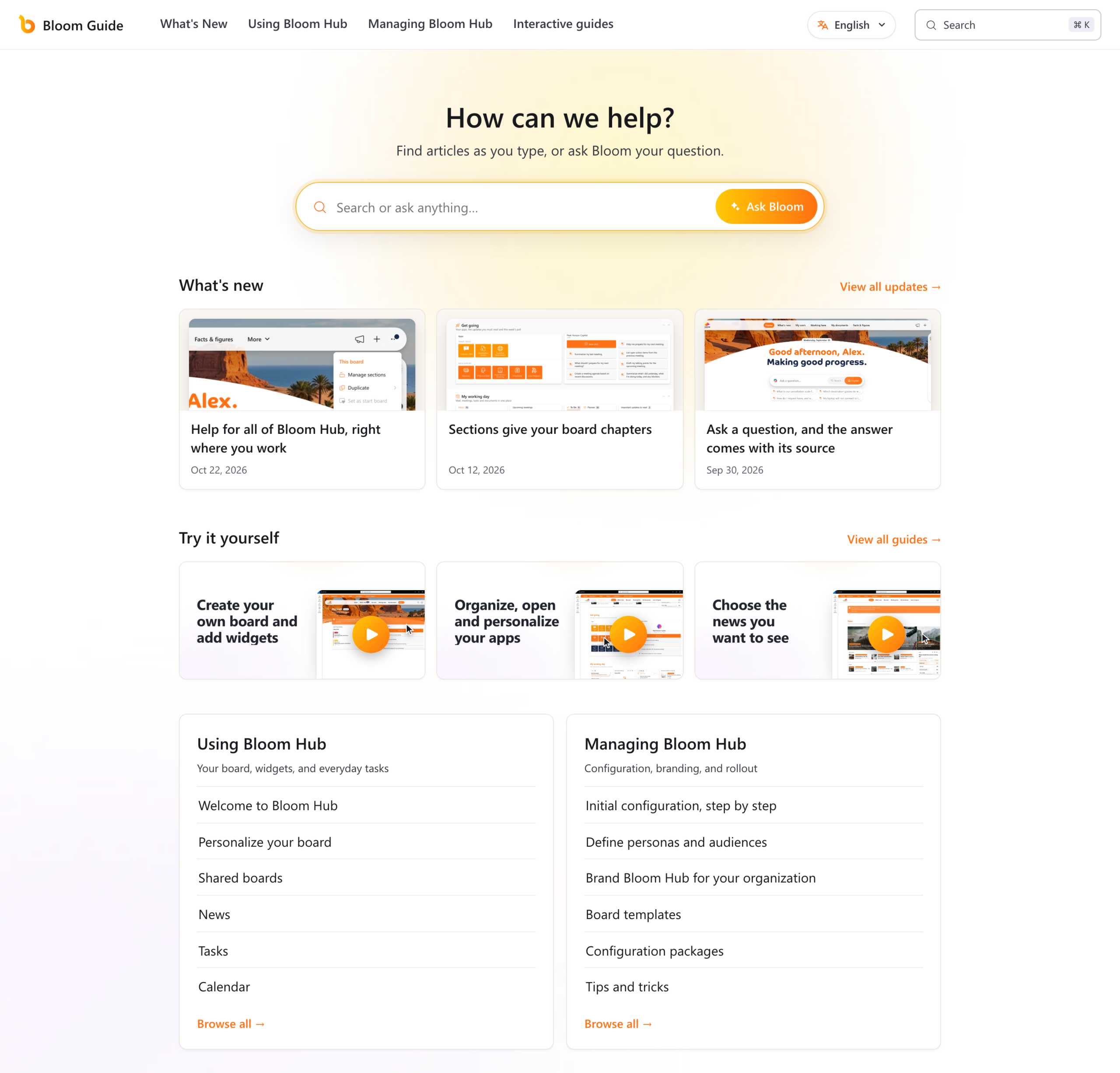
The start page opens with one search box for everything. Below it you find the latest updates, interactive guides to try yourself, and the articles for using and managing Bloom Hub.
One click from your board
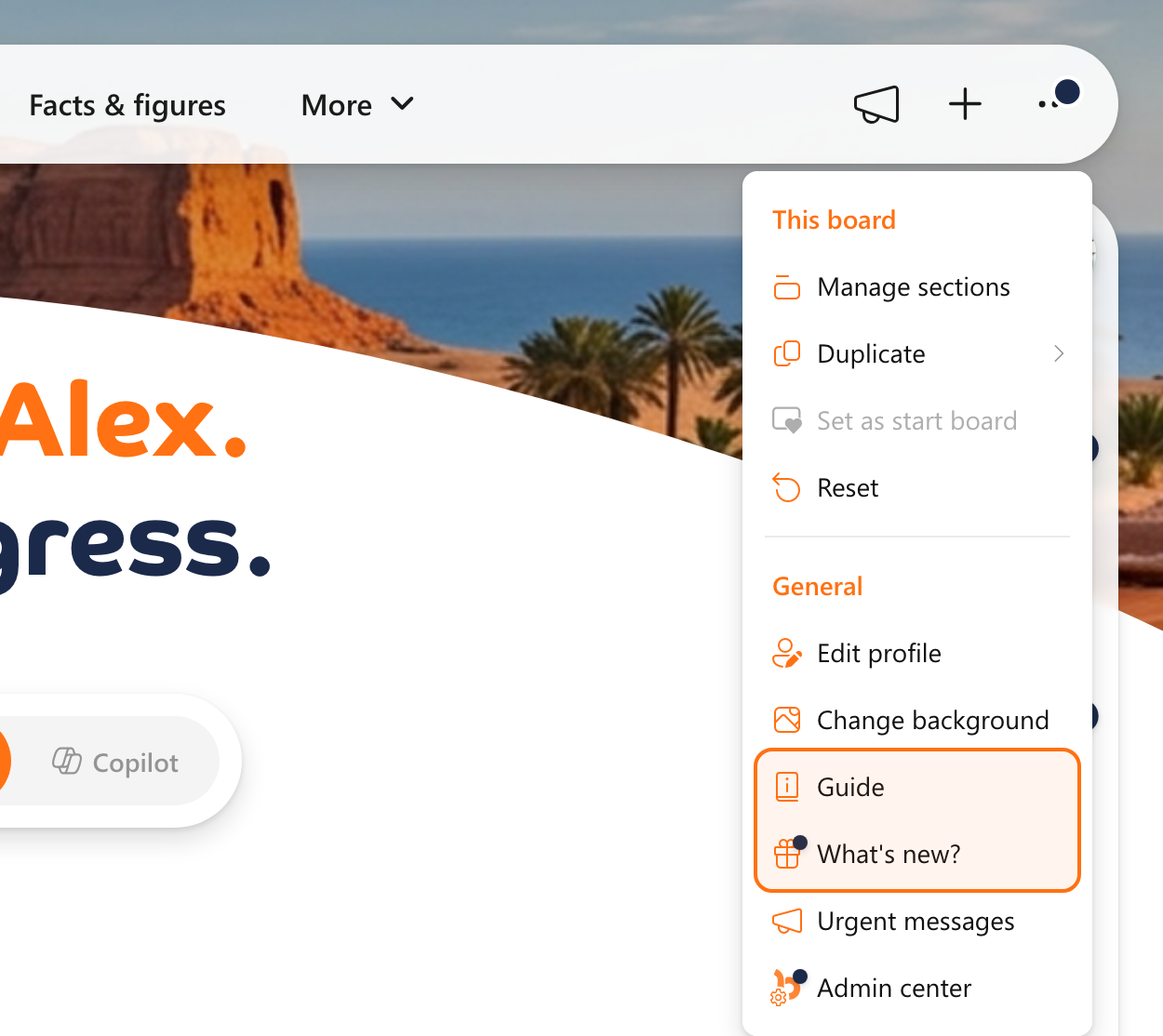
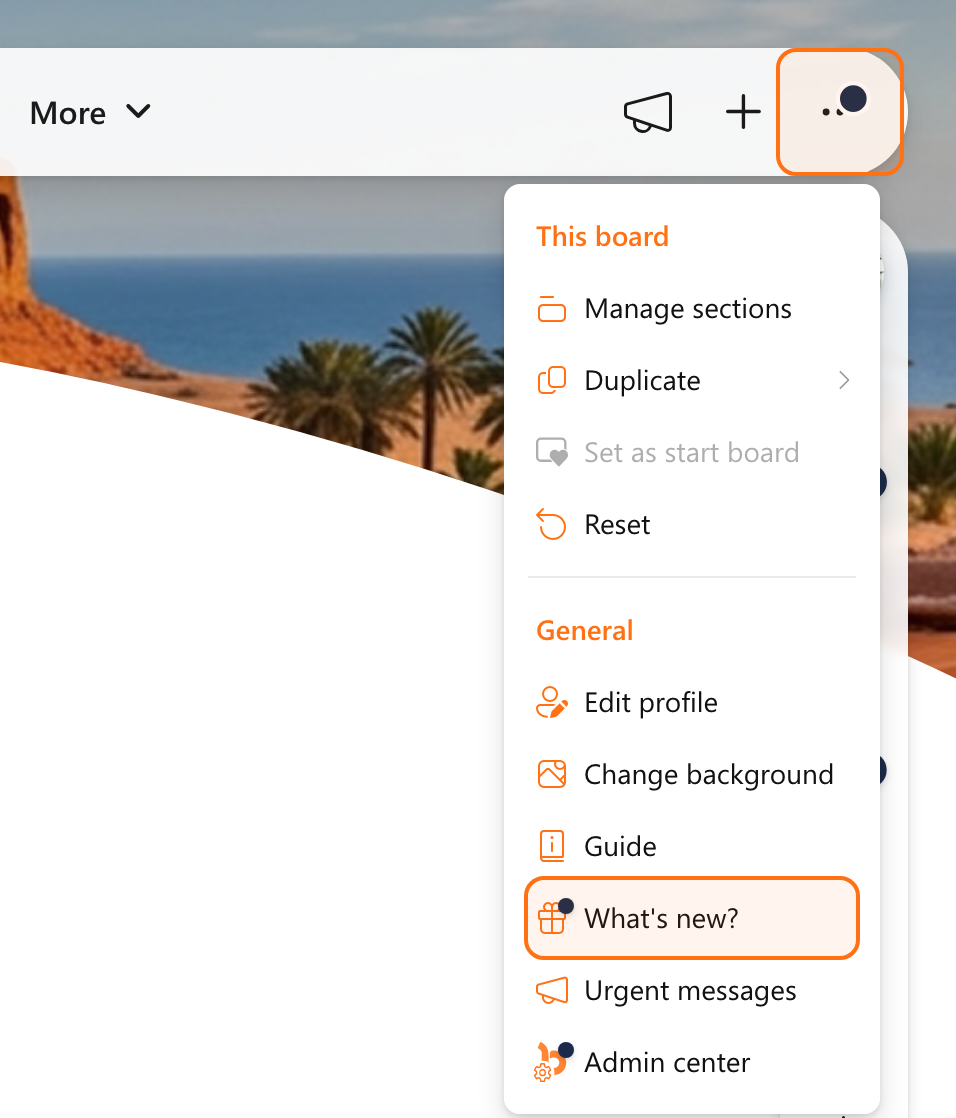
Open the menu at the top right of your board, the button with the three dots, and choose Guide. The guide opens over your board, and when you close it your board is right where you left it. What’s new? sits right below it in the same menu.
Every widget has an article of its own
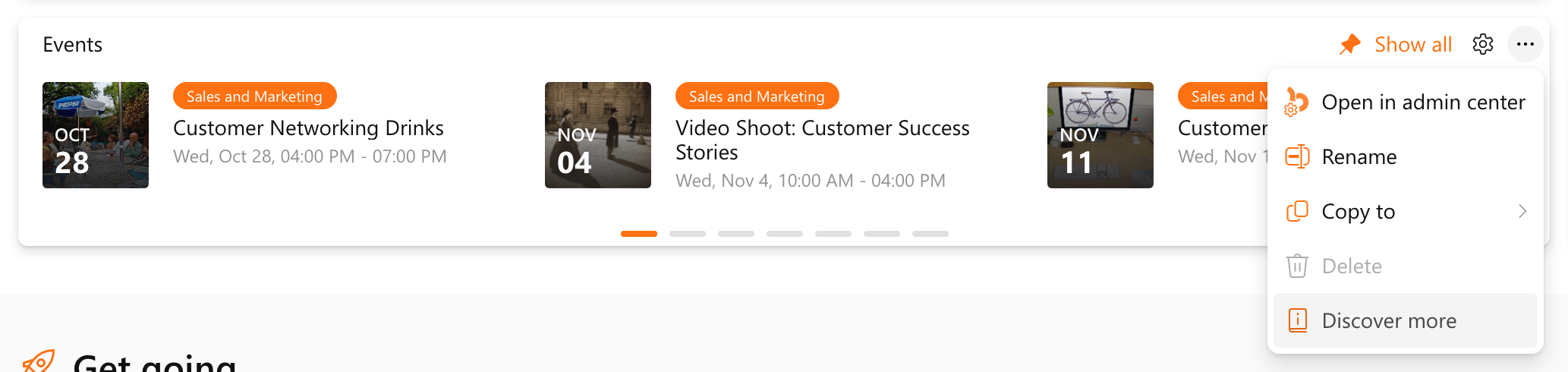
Each widget gets an article that explains what it does and what you can set up yourself. Discover more in the menu of a widget opens its article straight away, so the Events widget takes you to everything about events in one click. Beside every article you find related articles, the interactive guides on the same subject and the updates that changed it.
Ask Bloom answers your question
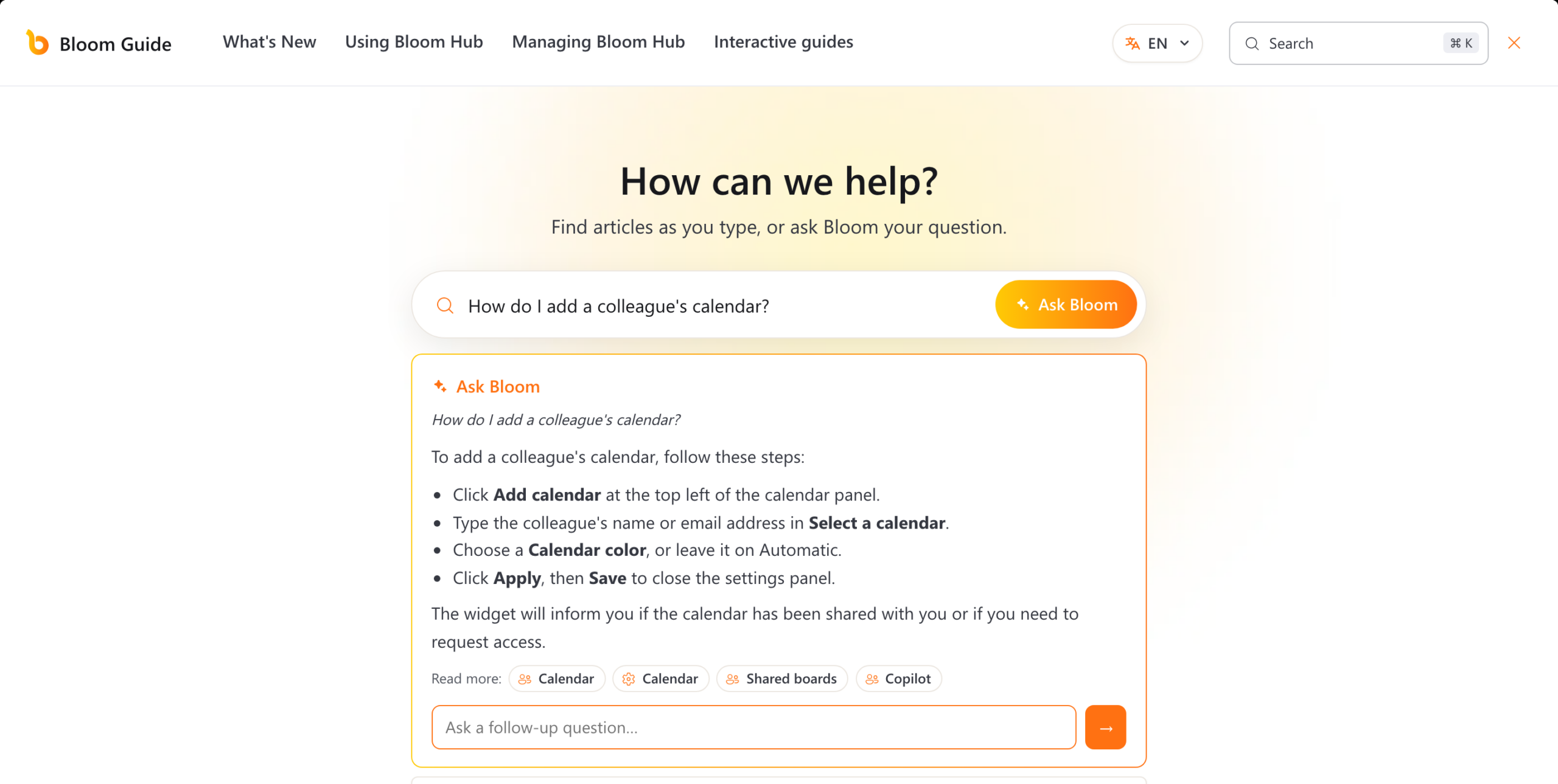
Start typing in the search box and the matching articles appear as you go. Press Enter and Ask Bloom answers your question in a few sentences, with links to the articles where you can read more. Ask how to add a colleague’s calendar and you get the four steps, from Add calendar to Save, with the Calendar articles right underneath. A follow-up question picks up where the answer left off.
Interactive guides show you how it's done
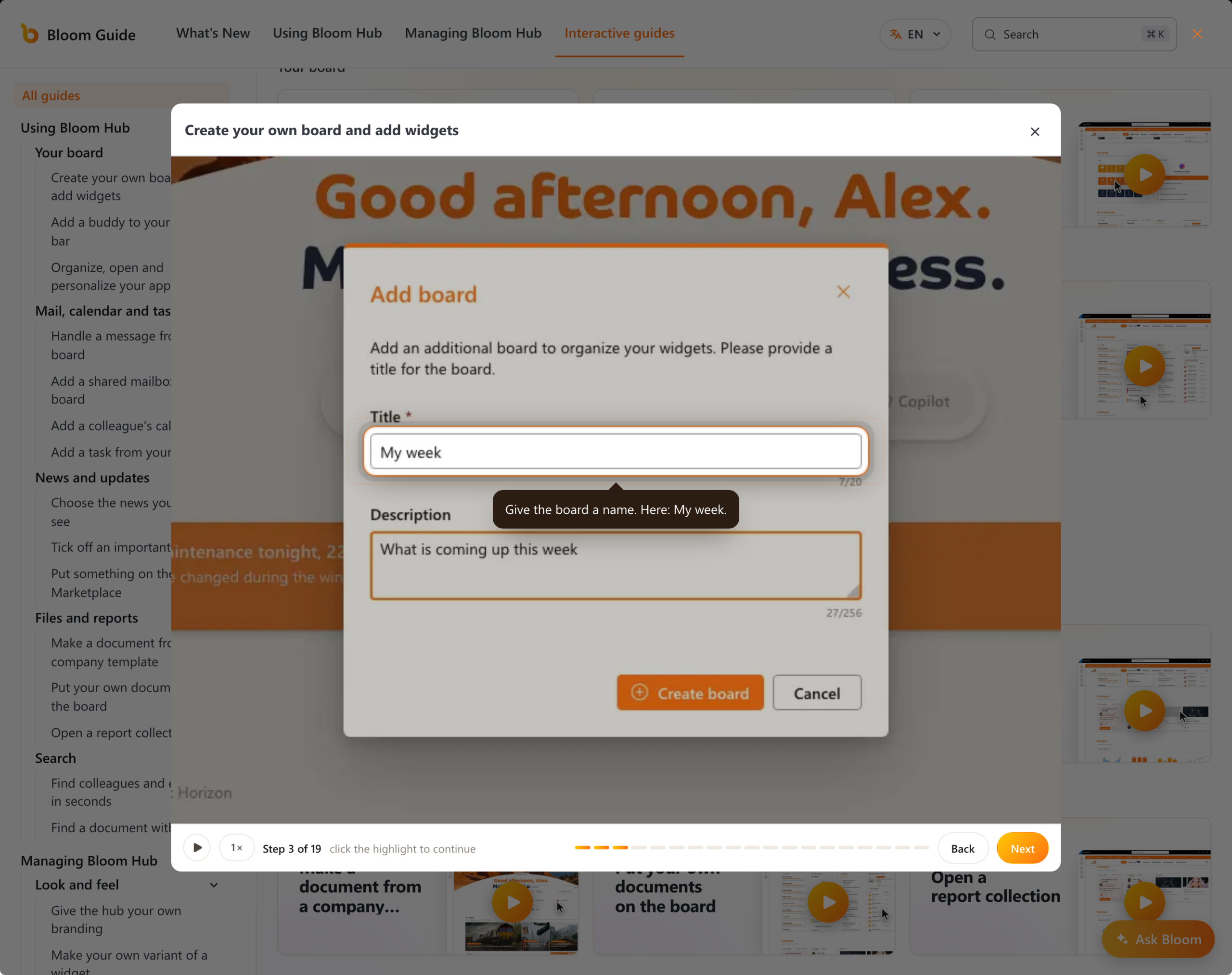
Short interactive guides walk you through everyday tasks, from creating your own board and adding widgets to adding a colleague’s calendar or putting something on the Marketplace. You click through each step at your own pace, or let the guide play on its own.
A dot tells you when something new arrives
What’s new? opens every update to Bloom Hub in one stream, newest first, with screenshots of what changed and where to find it. When a new update arrives, a dot appears on the menu button at the top right of your board and next to What’s new? in the menu, so you see at a glance that there is something to read. Once you have opened the stream, the dot goes away until the next update.
Updates are also linked to the articles they belong to. Open the article about a widget and the latest changes to that widget are right at the top.
Administrators get an article for every page of the Admin center
Managing Bloom Hub has an article for every section of the Admin center, and interactive guides for branding, board templates, shared boards and configuration packages. View guide on an Admin center page opens the article for that page.
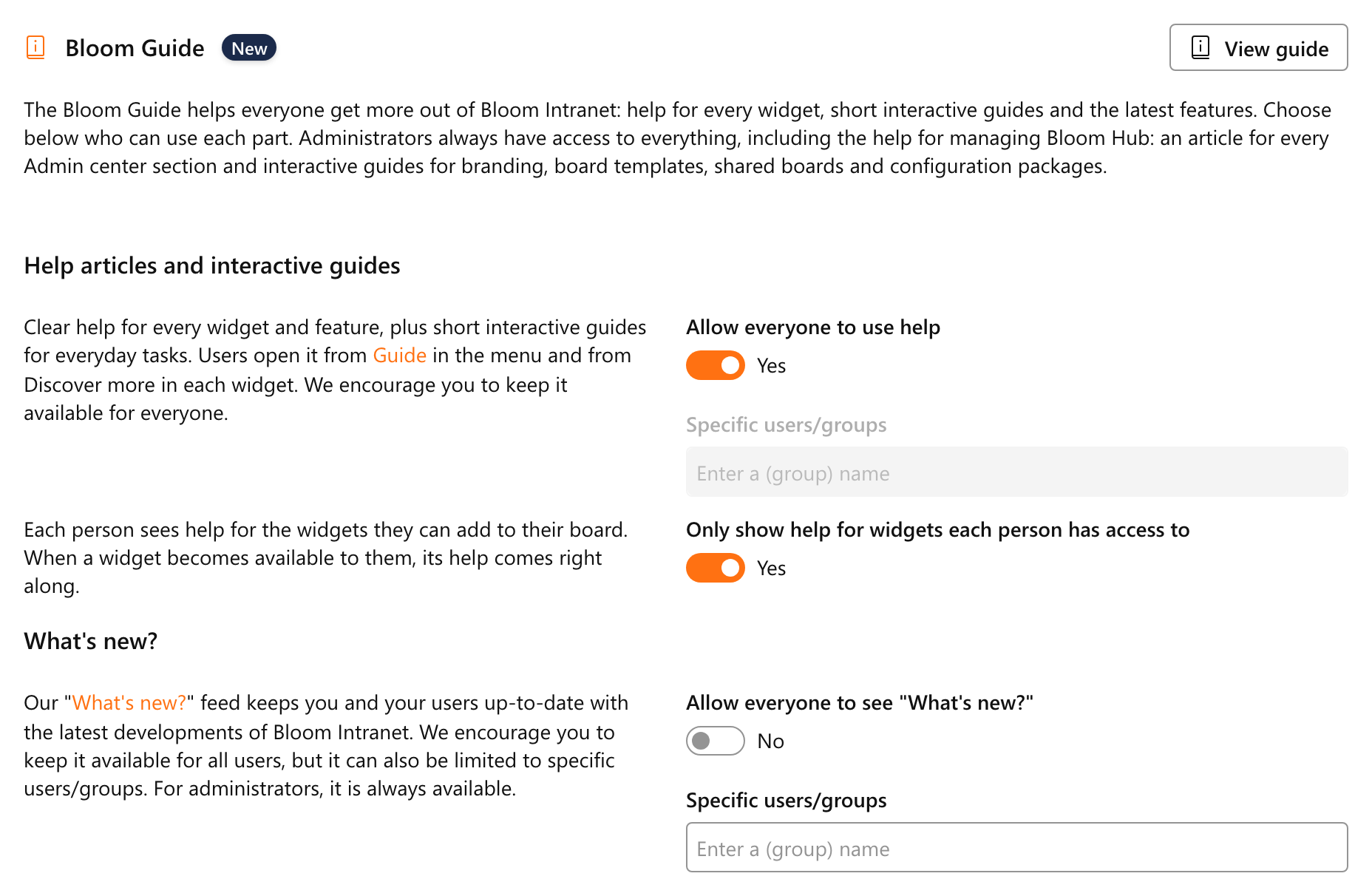
In General settings you decide who uses which part of the guide. Allow everyone to use help opens the articles and interactive guides to all, and Only show help for widgets each person has access to keeps the help focused on the widgets someone can add to their board. Allow everyone to see “What’s new?” shares the updates in the same way. Administrators always have access to everything.
Ready when you are
From the first login to the next update, your colleagues find their own way in Bloom Hub. That is how adoption keeps growing after launch day, and your intranet team has more time for everything else.
The Bloom Guide is live for every organization with a Bloom Hub license or trial, in all 16 languages Bloom Hub speaks. You find it under Guide in the menu at the top right of every board, and Discover more in the menu of every widget.
Curious how it fits your organization? Book a demo.


